Time Log Summary
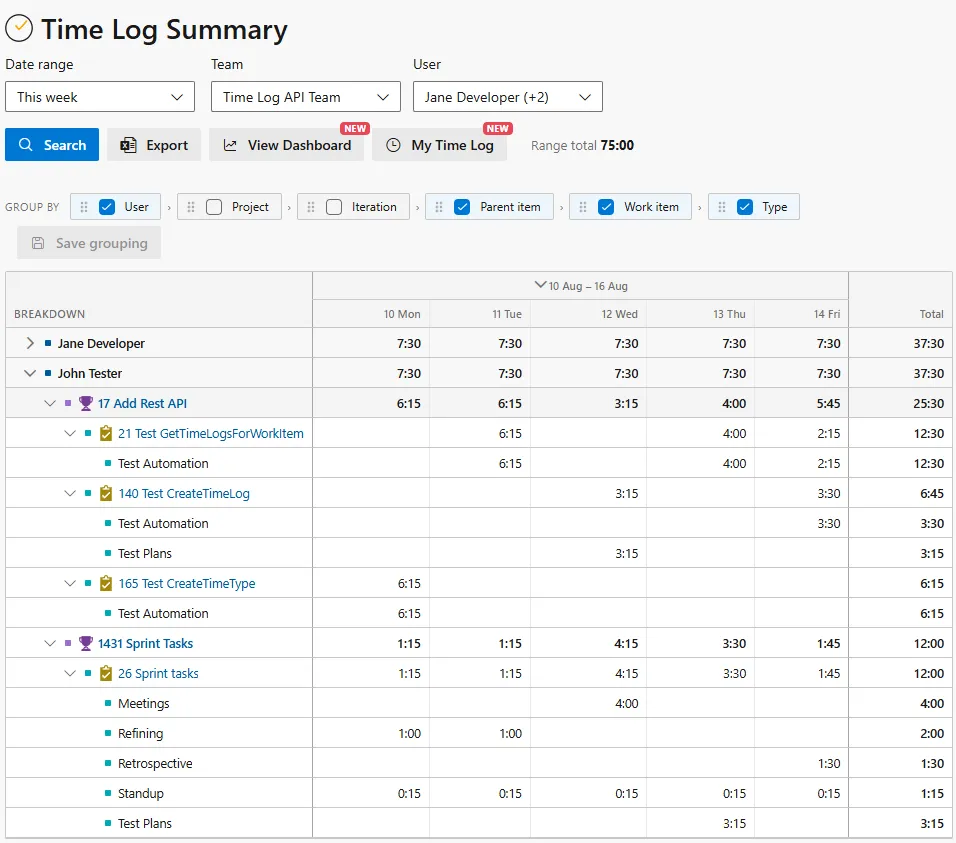
Time Log Summary answers the question every stand-up, invoice and sprint review runs into: who logged what, against which work item, in which week?
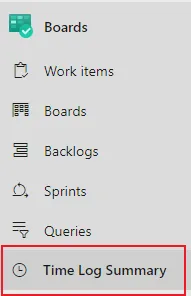
Choose a range, a project or several, a team and a user, then Search. The project filter opens on the project you are in and takes as many as you need, with the team and user lists following your choice; organisations with a single project do not see it, since there is nothing to choose. The range is one dropdown — This week, Last week, Last 2 weeks, Last 3 weeks, This month, Last month, Last 2 months, or any custom from/to dates. The Range total for everything on screen sits right beside the buttons, and Export downloads the full result as CSV for your own spreadsheets, invoicing or data warehouse.
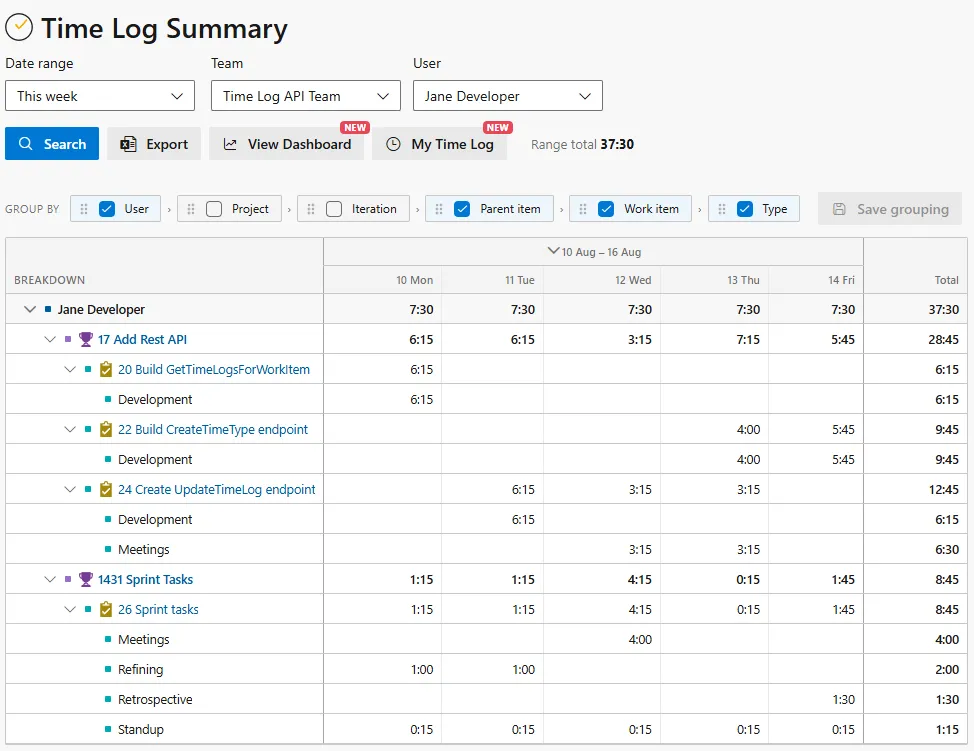
- A week at a glance, a month when you need it — days run across the columns beneath the week they belong to. Click a week heading to collapse it to a single total, click again for the daily breakdown, so a two-month range stays as readable as a single week.
- Group it your way — User, Project, Area path, Iteration, Parent item, Work item and Type are chips you can tick, untick and drag into any order. The grid regroups instantly, so the same search answers “what did this team spend on that epic?” and “how much of the month went to meetings?” without searching again.
- Save grouping — stores your arrangement against your Azure DevOps account, so it follows you to any browser or machine and is waiting for you next time.
- Straight through to the work — rows carry the real Azure DevOps work item type icon and link to the item itself, custom types included. Work items that have since been deleted still let you clear up the time log entries they left behind.
- Keep digging — View Dashboard carries the filters you already set into the Analytics Dashboard, and My Time Log jumps to your personal timesheet.
Team leads get the whole team in one grid: expand a person down through their projects, work items and time types, or collapse them back to a single weekly total.