
Time Log Admin
Manage time types
Section titled “Manage time types”Create time types so time can be broken down for reporting and planning. Reach them from Project settings → Extensions → Time Log Admin.
Who can manage time types
Section titled “Who can manage time types”The Time Log Admin page is open only to Project Administrators of the current project — everyone else sees a “Not authorised” panel instead of the admin UI. Membership is transitive, so Project Collection Administrators, and members of AAD / Entra ID / on-premises AD groups nested inside Project Administrators, are recognised too.
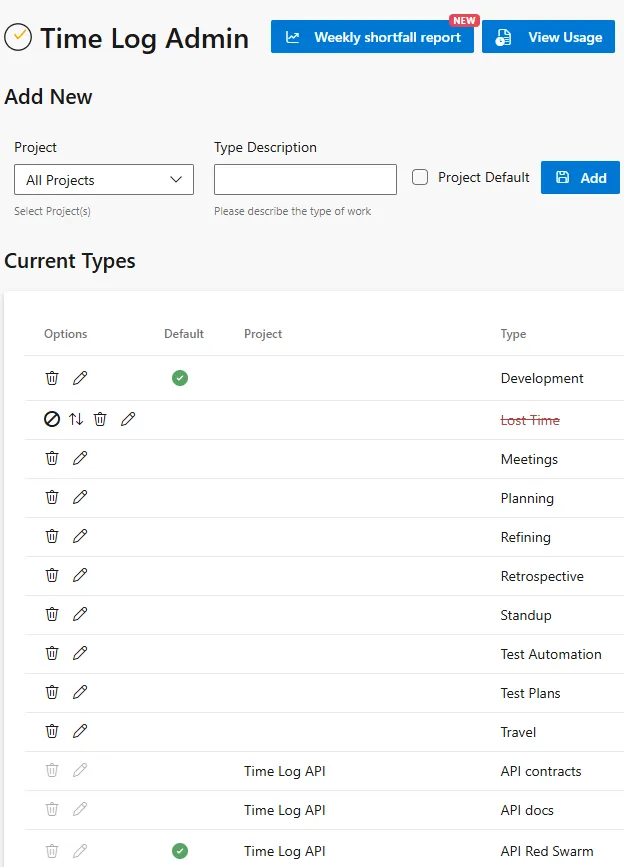
Within the page, each time type is managed by an administrator of its own project. The Current Types table lists every project’s types, so on a row for a project you do not administer the Move entries, Delete and Edit icons are greyed out and inert, and the create / edit form’s Add / Update button is disabled with an explanatory message when the project you have selected is not one you administer. Organisation-wide (“All Projects”) types, and orphaned types whose owning project has been deleted or is not visible to you (shown as “Unknown project”), defer to the current project’s administrator. The check fails closed: while your permissions for a project are still being resolved the controls stay disabled.
Creating a type
Section titled “Creating a type”Each time type can be made available to All Projects, or to one project chosen from the Project menu. When logging time, you are offered that project’s own types plus every All Projects type.
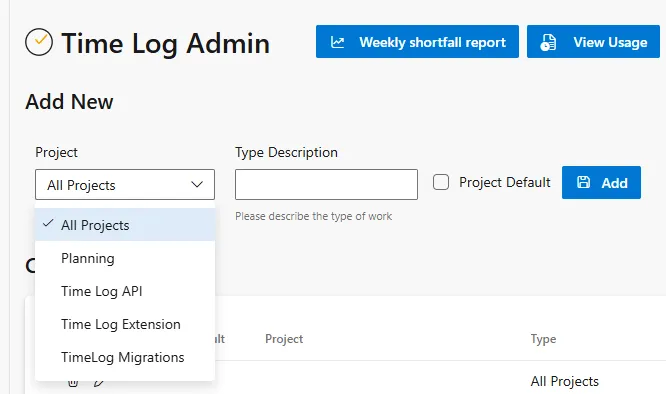
Tick Project Default to have the type preselected when logging time. The default is taken from the work item’s own project, so logging against a work item in another project picks up that project’s default rather than the current page’s; if that project has no default, any type marked as a default is used.
The list of time types can then be amended as needed. Types are listed All Projects first, then by project and name, with a tick in the Default column against each project’s default and the Options column carrying the per-row actions. A disabled type is struck through and carries a Blocked icon alongside its extra Move entries action.
Disabling a time type
Section titled “Disabling a time type”A type that is no longer in use can be retired without losing the history behind it: edit the type and tick Disabled. A default type cannot be disabled — clear Project Default first.
A disabled type still appears in the type dropdown when logging time, marked with a Blocked icon and sorted below the active types, but it cannot be chosen for a new entry. Existing entries keep their type: they are shown greyed on the work item’s Time Log tab, and can still be edited (with a warning that the type cannot be used for new logs) or deleted.
Move time log entries to another type
Section titled “Move time log entries to another type”When a time type is disabled it can no longer be selected for new time logs, but existing entries still reference it. To tidy these up, each disabled type in the Current Types table has a Move entries action.

Choose a replacement (active) type and every time log entry using the disabled type is reassigned to it, with a confirmation of how many entries were moved. For a type that belongs to a project, the Show replacement types from toggle filters the replacement list between that type’s own project and “All Projects” (organisation-level) types — it only changes which types you can pick, all of the disabled type’s entries are moved either way. An “All Projects” type offers organisation-level replacements only, so the toggle is not shown. Once a disabled type’s entries have been moved, the type can be safely deleted.
Weekly shortfall report
Section titled “Weekly shortfall report”Spot users who logged less than their weekly target for any ISO week from a single page. Reach it via the Weekly shortfall report button on the Time Log Admin page.
- Defaults to the last completed week; navigate with Previous / Next / “This week”.
- Shows each user’s effective target (organisation default or personal override), logged time, and shortfall — sorted by largest deficit first. A
personalisedbadge marks users on a per-user target. - Scoped to active users only (those with at least one log in the previous four weeks), so leavers are not surfaced.
- Logged time is the user’s total across every project in the organisation for that week — the same figure as My Time Log. The team filter only chooses which users are listed; it never narrows what is logged for them.
- Hero cards summarise users below target, total shortfall across the organisation, and average shortfall per user.
- Download CSV exports the table for further analysis.