
My Time Log
The My Time Log hub is your own weekly timesheet: review and correct everything you have logged without visiting each work item in turn.
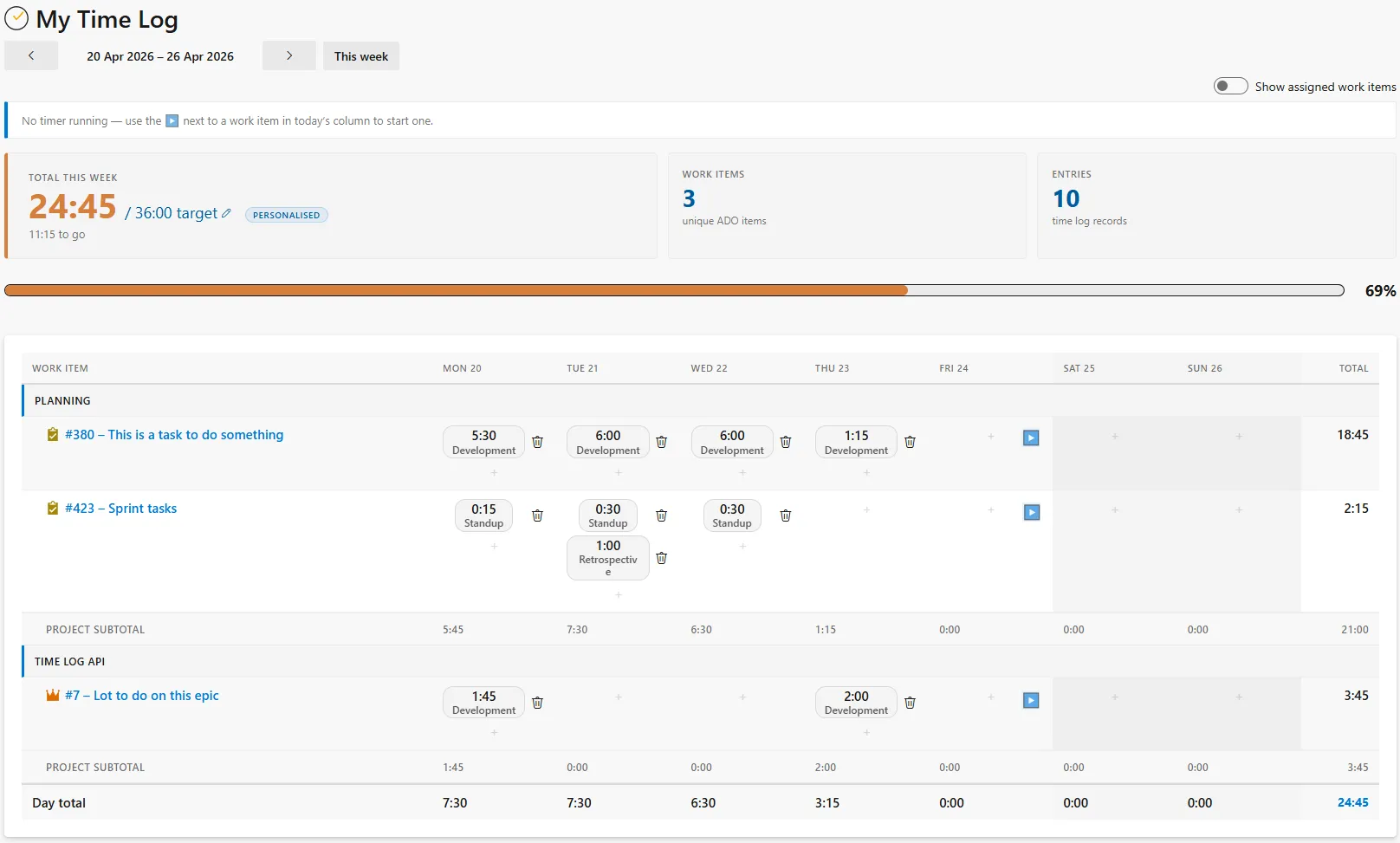
- Work items down the rows, Monday–Sunday across the columns, grouped by project.
- Each cell shows one pill per log on that day. Click a pill to edit; click an empty cell to create — the dialog is pre-filled with the correct date and work item.
- Navigate Previous / Next / This week to move through the weeks — no hard limit on how far back you can go.
- Work items you have logs against this week are shown, plus any active work items assigned to you. Toggle Show assigned work items off for a pure logged-time view.
- The hero card at the top shows total time logged this week against a configurable weekly target, with progress bar, true percentage, and hours to go / over.
- Honours the admin settings: future-date logging, minimum comment length, lock date, and disabled time types.
Copy last week
Section titled “Copy last week”Most weeks look a great deal like the one before them. Copy last week, beside the Show assigned work items toggle, takes last week’s entries and offers them for this week, day for day — a Wednesday’s three hours becomes this Wednesday’s three hours.
- The dialog shows last week as a miniature of the grid: one row per work item, the seven days across, and a chip for every entry. Untick a whole work item, or a single day, and the total at the foot follows along. Nothing is written until you press Copy.
- Copy comments too is on by default; turn it off to copy the hours and the type but leave the comments blank.
- An entry that is already logged in this week — same work item, day, type and duration — starts unticked and is marked, so running the copy twice does not silently double your week. Tick it if you really did do the same hour twice.
- If part of a copy fails, the dialog stays open with the entries that saved unticked, so pressing Copy again retries only what failed.
- Every rule that applies to logging a single entry applies here. An entry that cannot be copied is shown struck through and cannot be ticked, with the reason spelled out beneath the grid: the work item is closed or has been deleted, the day it would land on is in the future or on or before the lock date, its time type has since been disabled, or the organisation requires a comment the entry does not have.
- Copied entries update Completed and Remaining on each work item exactly as entries typed by hand do — once per work item, with the total of everything copied against it.